Streaming ELT from MySQL to Kafka
This tutorial is to show how to quickly build a Streaming ELT job from MySQL to Kafka using Flink CDC, including the feature of sync all table of one database, schema change evolution and sync sharding tables into one table. All exercises in this tutorial are performed in the Flink CDC CLI, and the entire process uses standard SQL syntax, without a single line of Java/Scala code or IDE installation.
Preparation
You need a Linux or macOS computer with Docker installed before starting.
Prepare Flink Standalone cluster
-
Download Flink 1.20.5, unzip it and enter
flink-1.20.5directory. Use the following command to navigate to the Flink directory and setFLINK_HOMEto the directory where flink-1.20.5 is located.tar -zxvf flink-1.20.5-bin-scala_2.12.tgzexport FLINK_HOME=$(pwd)/flink-1.20.5cd flink-1.20.5 -
Enable checkpointing by appending the following parameters to the
conf/config.yamlconfiguration file to perform a checkpoint every 3 seconds.execution:checkpointing:interval: 3s -
Start the Flink cluster using the following command.
./bin/start-cluster.sh
After the cluster gets started, you can access the Flink Web UI at http://localhost:8081/.
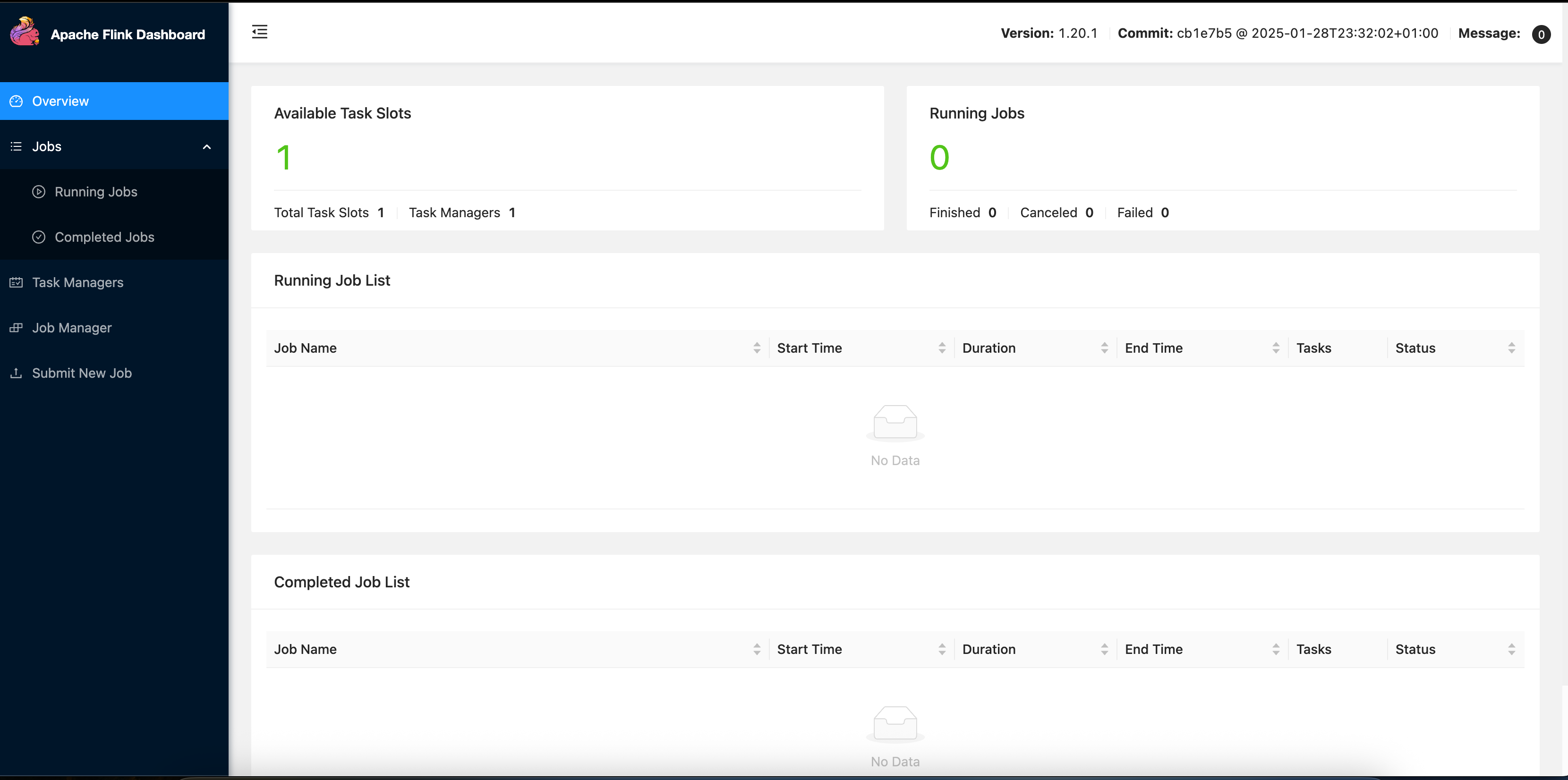
Run start-cluster.sh multiple times to start more TaskManagers if necessary.
Notice: If you are deploying your Flink cluster as a cloud service, you may need to configure rest.bind-address and rest.address in conf/config.yaml to 0.0.0.0, and then use the public IP address to access the Flink Web UI.
Prepare docker compose
First, let's create a docker-compose.yml file and write the following contents:
version: '2.1'
services:
  Zookeeper:
    image: zookeeper:3.7.1
    ports:
      - "2181:2181"
    environment:
      - ALLOW_ANONYMOUS_LOGIN=yes
  Kafka:
    image: bitnami/kafka:2.8.1
    ports:
      - "9092:9092"
      - "9093:9093"
    environment:
      - ALLOW_PLAINTEXT_LISTENER=yes
      - KAFKA_LISTENERS=PLAINTEXT://:9092
      - KAFKA_ADVERTISED_LISTENERS=PLAINTEXT://Kafka:9092
      - KAFKA_ZOOKEEPER_CONNECT=Zookeeper:2181
  MySQL:
    image: debezium/example-mysql:1.1
    ports:
      - "3306:3306"
    environment:
      - MYSQL_ROOT_PASSWORD=123456
      - MYSQL_USER=mysqluser
      - MYSQL_PASSWORD=mysqlpw
The Docker Compose will prepare the following containers for us:
- MySQL, acts as the pipeline source
- Kafka, acts as the pipeline sink
- Zookeeper, for Kafka cluster management and coordination
To start all containers, run the following command in the directory that contains the docker-compose.yml file.
docker compose up -d
This command automatically starts all the containers defined in the Docker Compose configuration in a detached mode.
Run docker ps to check whether these containers are running properly.

Prepare records for MySQL
-
Enter MySQL container with the following command:
docker compose exec MySQL mysql -uroot -p123456 -
Create
app_dbdatabase andorders,products,shipmentstables, then insert some data change records:-- create databaseCREATE DATABASE app_db;USE app_db;-- create orders tableCREATE TABLE `orders` (`id` INT NOT NULL,`price` DECIMAL(10,2) NOT NULL,PRIMARY KEY (`id`));-- insert recordsINSERT INTO `orders` (`id`, `price`) VALUES (1, 4.00);INSERT INTO `orders` (`id`, `price`) VALUES (2, 100.00);-- create shipments tableCREATE TABLE `shipments` (`id` INT NOT NULL,`city` VARCHAR(255) NOT NULL,PRIMARY KEY (`id`));-- insert recordsINSERT INTO `shipments` (`id`, `city`) VALUES (1, 'beijing');INSERT INTO `shipments` (`id`, `city`) VALUES (2, 'xian');-- create products tableCREATE TABLE `products` (`id` INT NOT NULL,`product` VARCHAR(255) NOT NULL,PRIMARY KEY (`id`));-- insert recordsINSERT INTO `products` (`id`, `product`) VALUES (1, 'Beer');INSERT INTO `products` (`id`, `product`) VALUES (2, 'Cap');INSERT INTO `products` (`id`, `product`) VALUES (3, 'Peanut');
Submit job with Flink CDC CLI
Please note that the following download links are available only for stable releases. You need to build your own SNAPSHOT versions based on master or release branches by yourself.
-
Download the binary compressed packages listed below and extract them to the directory
flink-cdc-3.8-SNAPSHOT: flink-cdc-3.8-SNAPSHOT-bin.tar.gz flink-cdc-3.8-SNAPSHOT directory will contain four directory:bin,lib,log, andconf. -
Download the connector package listed below and move it to the
libdirectory: Please note that you need to move the jar to the lib directory of Flink CDC Home, not to the lib directory of Flink Home.You also need to place MySQL connector into Flink
libfolder or pass it with--jarargument, since they're no longer packaged with CDC connectors: -
Write a YAML pipeline definition file. Here is an example YAML file
mysql-to-kafka.yamlfor synchronizing MySQL database to Kafka:################################################################################# Description: Sync MySQL all tables to Kafka################################################################################source:type: mysqlhostname: 0.0.0.0port: 3306username: rootpassword: 123456tables: app_db.\.*server-id: 5400-5404server-time-zone: UTCsink:type: kafkaname: Kafka Sinkproperties.bootstrap.servers: 0.0.0.0:9092topic: yaml-mysql-kafkapipeline:name: MySQL to Kafka Pipelineparallelism: 1 -
Finally, submit job to Flink Standalone cluster using CDC CLI.
bash bin/flink-cdc.sh mysql-to-kafka.yamlThe following message should be printed to the console after submitting pipeline job to Flink cluster:
Pipeline has been submitted to cluster.Job ID: 04fd88ccb96c789dce2bf0b3a541d626Job Description: MySQL to Kafka PipelineA job named
Sync MySQL Database to Kafkacould be seen running in the Flink Web UI.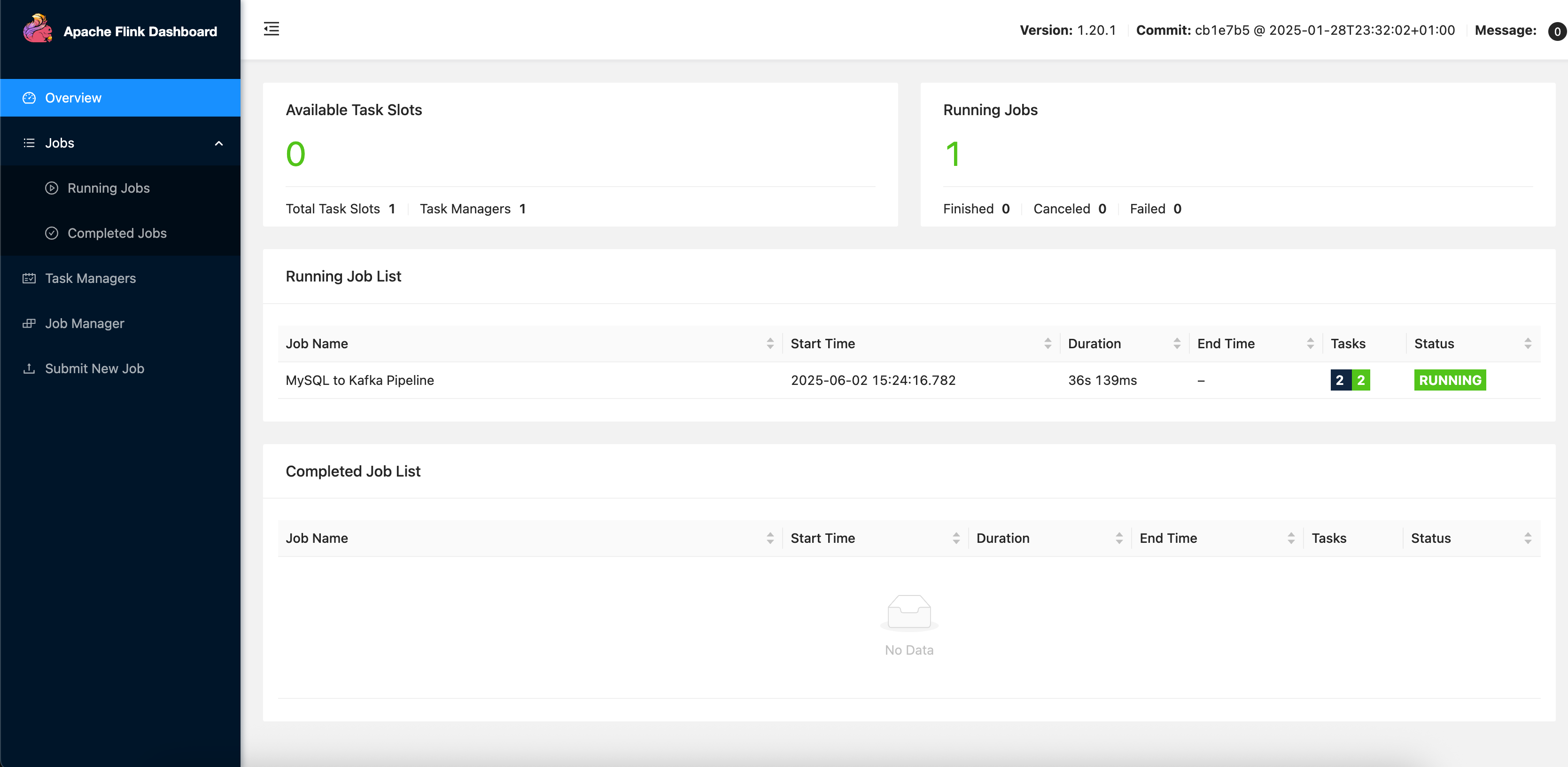
We can subscribe the sink kafka topic to monitor messages sent to Kafka with this command:
docker compose exec Kafka kafka-console-consumer.sh --bootstrap-server 0.0.0.0:9092 --topic yaml-mysql-kafka --from-beginningThe debezium-json format encodes several fields including
before,after,op, andsource. An example:{"before": null,"after": {"id": 1,"price": 4},"op": "c","source": {"db": "app_db","table": "orders"}}// ...{"before": null,"after": {"id": 1,"product": "Beer"},"op": "c","source": {"db": "app_db","table": "products"}}// ...{"before": null,"after": {"id": 2,"city": "xian"},"op": "c","source": {"db": "app_db","table": "shipments"}}
Synchronize Schema and Data changes
-
First, we enter the MySQL container:
docker compose exec mysql mysql -uroot -p123456 -
Insert one record in
ordersfrom MySQL:INSERT INTO app_db.orders (id, price) VALUES (3, 100.00); -
Add one column in
ordersfrom MySQL:ALTER TABLE app_db.orders ADD amount varchar(100) NULL; -
Update one record in
ordersfrom MySQL:UPDATE app_db.orders SET price=100.00, amount=100.00 WHERE id=1; -
Delete one record in
ordersfrom MySQL:DELETE FROM app_db.orders WHERE id=2;
By monitoring the topic through consumers, we may expect these messages in Kafka topic:
{
    "before": {
        "id": 1,
        "price": 4,
        "amount": null
    },
    "after": {
        "id": 1,
        "price": 100,
        "amount": "100.00"
    },
    "op": "u",
    "source": {
        "db": "app_db",
        "table": "orders"
    }
}
Similarly, by modifying the shipments and products table, you can see the results of other changes synchronized in real-time in corresponding topics in Kafka.
Route the changes
Flink CDC provides the configuration to route the table structure/data of the source table to other table names.
With this ability, we can achieve functions such as table name, database name replacement, and whole database synchronization.
Here is an example file for using route feature:
################################################################################
# Description: Sync MySQL all tables to Kafka
################################################################################
source:
  type: mysql
  hostname: localhost
  port: 3306
  username: root
  password: 123456
  tables: app_db.\.*
  server-id: 5400-5404
  server-time-zone: UTC

sink:
  type: kafka
  name: Kafka Sink
  properties.bootstrap.servers: 0.0.0.0:9092
pipeline:
  name: MySQL to Kafka Pipeline
  parallelism: 1
route:
  - source-table: app_db.orders
    sink-table: kafka_ods_orders
  - source-table: app_db.shipments
    sink-table: kafka_ods_shipments
  - source-table: app_db.products
    sink-table: kafka_ods_products
With route rules, we can synchronize schema and data changes of tables in app_db to corresponding Kafka topics.
source-tablealso supports matching multiple tables with Regular Expressions. Table schemas will be merged and synchronize to one single Kafka topic.
   route:
     - source-table: app_db.order\.*
       sink-table: kafka_ods_orders
In this way, we can synchronize sharding tables like
app_db.order01,app_db.order02,app_db.order03into one kafka_ods_orders topic.
We can run the following command to peek topics created to Kafka:
docker compose exec Kafka kafka-topics.sh --bootstrap-server 0.0.0.0:9092 --list
- __consumer_offsets
- kafka_ods_orders
- kafka_ods_products
- kafka_ods_shipments
- yaml-mysql-kafka
By peeking messages sent to kafka_ods_orders topic, we may see the following output:
{
    "before": null,
    "after": {
        "id": 1,
        "price": 100,
        "amount": "100.00"
    },
    "op": "c",
    "source": {
        "db": null,
        "table": "kafka_ods_orders"
    }
}
Writing to Multiple Partitions
The partition.strategy option can be used to configure the strategy of sending data to Kafka partitions. Available choices are:
all-to-zero: Send all data to Partition #0. This is the default behavior.hash-by-key: Data changes will be distributed based on the hash value of the primary key.
For example, we may add the extra configuration here:
source:
  # ...
sink:
  # ...
  topic: yaml-mysql-kafka-hash-by-key
  partition.strategy: hash-by-key
pipeline:
  # ...
And create a Kafka topic with 12 partitions:
docker compose exec Kafka kafka-topics.sh --create --topic yaml-mysql-kafka-hash-by-key --bootstrap-server 0.0.0.0:9092 --partitions 12
After submitting the pipeline job, we can peek messages from specific partitions:
docker compose exec Kafka kafka-console-consumer.sh --bootstrap-server=0.0.0.0:9092 --topic yaml-mysql-kafka-hash-by-key --partition 0 --from-beginning
You may get the following output:
// partition 0
{
    "before": null,
    "after": {
        "id": 1,
        "price": 100,
        "amount": "100.00"
    },
    "op": "c",
    "source": {
        "db": "app_db",
        "table": "orders"
    }
}
// partition 4
{
    "before": null,
    "after": {
        "id": 2,
        "product": "Cap"
    },
    "op": "c",
    "source": {
        "db": "app_db",
        "table": "products"
    }
}
{
    "before": null,
    "after": {
        "id": 1,
        "city": "beijing"
    },
    "op": "c",
    "source": {
        "db": "app_db",
        "table": "shipments"
    }
}
Output format
The value.format could be used to configure the JSON serialization format sent to Kafka.
Available options are debezium-json (default) and canal-json. User-defined output format is not supported for now.
debezium-jsonformat will encodebefore,after,op, andsourcefields into JSON.canal-jsonformat will encodeold,data,type,database,table,pkNamesfields into JSON.- The
ts_msfield will not be included in the output structure by default. You need to set MySQL source optionmetadata.listto expose extra metadata fields.
An example for canal-json format output would be like:
{
    "old": null,
    "data": [
        {
            "id": 1,
            "price": 100,
            "amount": "100.00"
        }
    ],
    "type": "INSERT",
    "database": "app_db",
    "table": "orders",
    "pkNames": [
        "id"
    ]
}
Table-to-Topic Mapping
The sink.tableId-to-topic.mapping parameter can be used to specify the mapping rules from upstream tables to Kafka topics.
Unlike the route rules, table-to-topic mapping will not try to merge table schemas from upstream.
TableId from different tables will keep unchanged, they're just dispatched to different topics.
Add sink.tableId-to-topic.mapping configuration to specify the mapping relationship.
Topic mapping rules are separated by ;. Each mapping rule is consisted by two parts: upstream Table ID (RegExp) and sink Kafka topic name, separated by :.
source:
  # ...

sink:
  # ...
  sink.tableId-to-topic.mapping: app_db.orders:yaml-mysql-kafka-orders;app_db.shipments:yaml-mysql-kafka-shipments;app_db.products:yaml-mysql-kafka-products
pipeline:
  # ...
With the configuration above, these topics will be created:
- yaml-mysql-kafka-orders
- yaml-mysql-kafka-products
- yaml-mysql-kafka-shipments
Each topic should contain the following records:
-
yaml-mysql-kafka-orders{"before": null,"after": {"id": 1,"price": 100,"amount": "100.00"},"op": "c","source": {"db": "app_db","table": "orders"}} -
yaml-mysql-kafka-products{"before": null,"after": {"id": 2,"product": "Cap"},"op": "c","source": {"db": "app_db","table": "products"}} -
yaml-mysql-kafka-shipments{"before": null,"after": {"id": 2,"city": "xian"},"op": "c","source": {"db": "app_db","table": "shipments"}}
Cleanup
After finishing the tutorial, you may run the following command to stop all containers in the directory of docker-compose.yml:
docker compose down
Run the following command to stop the Flink cluster in FLINK_HOME:
./bin/stop-cluster.sh
Copyright © 2026 The Apache Software Foundation. Apache Flink, Flink, and the Flink logo are trademarks of The Apache Software Foundation.